Patrick McPherson
Software Developer
View all authors

Premeeting with CRM

· One min read
Patrick McPherson
Software Developer

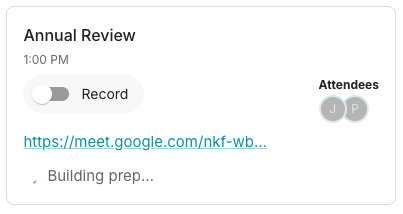
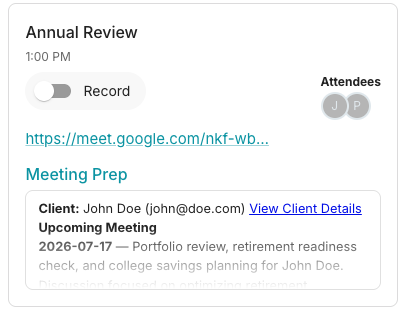
Premeeting generation now has the ability to add information from Salesforce, Redtail, and Wealthbox. Make sure you enable Pre-meeting Note Settings in General Settings and CRM Data Access in Organization Settings.
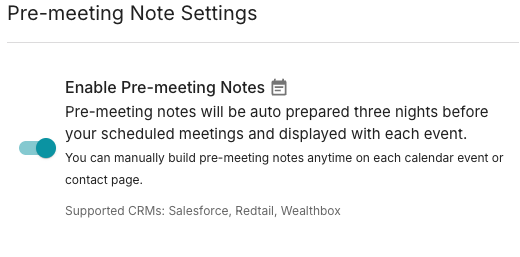

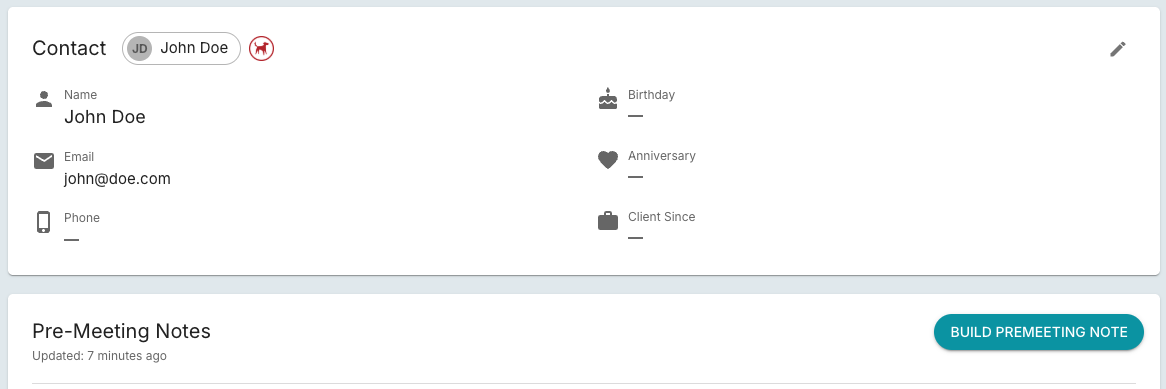
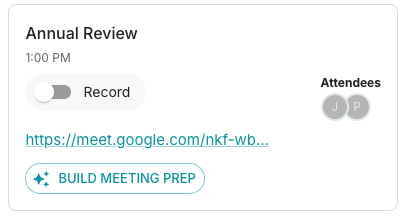
Premeetings will now include information from events and notes from your CRM. To manually build the premeeing notes, find the client page and click Build Premeeting Note or find the event and click Build Meeting Prep.
Microsoft Dynamics

· One min read
Patrick McPherson
Software Developer

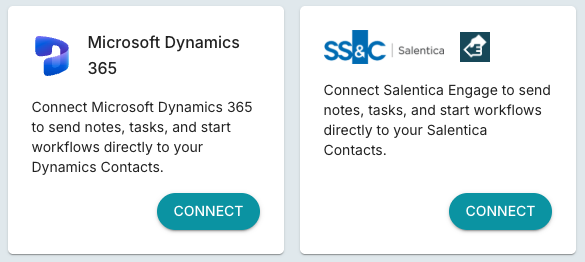
We've added integration with Microsoft Dynamics and Salentica Engage CRMs.

What you can do with the Dynamics integration:

  • Search and Import: Quickly find and pull contacts or accounts directly into your FinMate contacts.

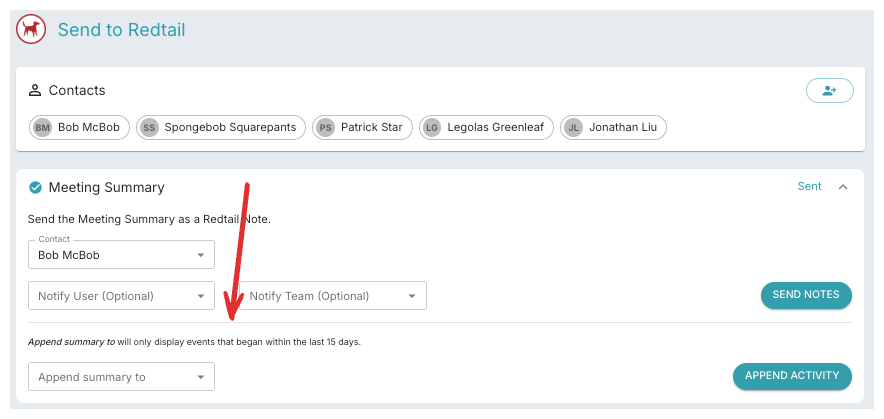
  • Sync Notes & Events: Create new notes and events, or attach FinMate event notes to existing calendar items.

  • Manage Tasks: Send your FinMate created tasks to your Dynamics tasks.

Hubspot integration

· One min read
Patrick McPherson
Software Developer

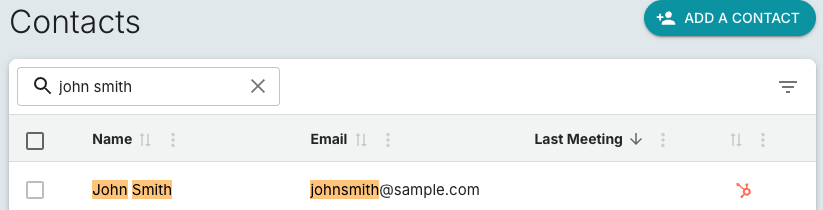
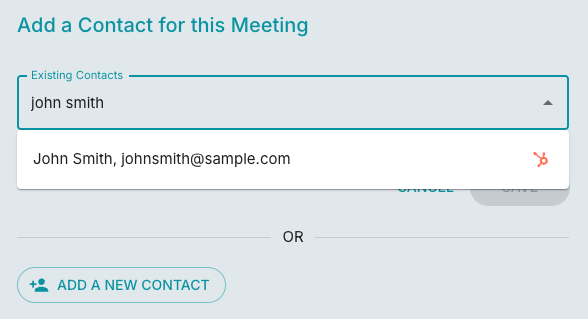
FinMate now supports Hubspot integration.

Import contacts, companies, and leads by searching for the name

FinMate will try and match your FinMate contacts to a Hubspot contact via email, if no match is found a new Hubspot contact will be crated for you.

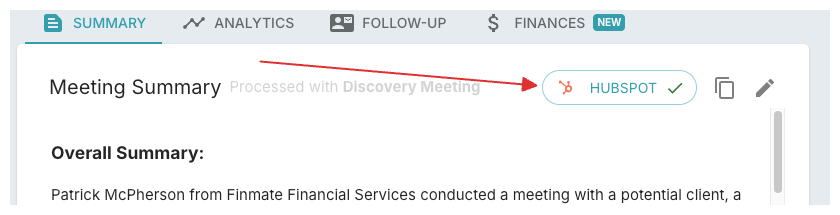
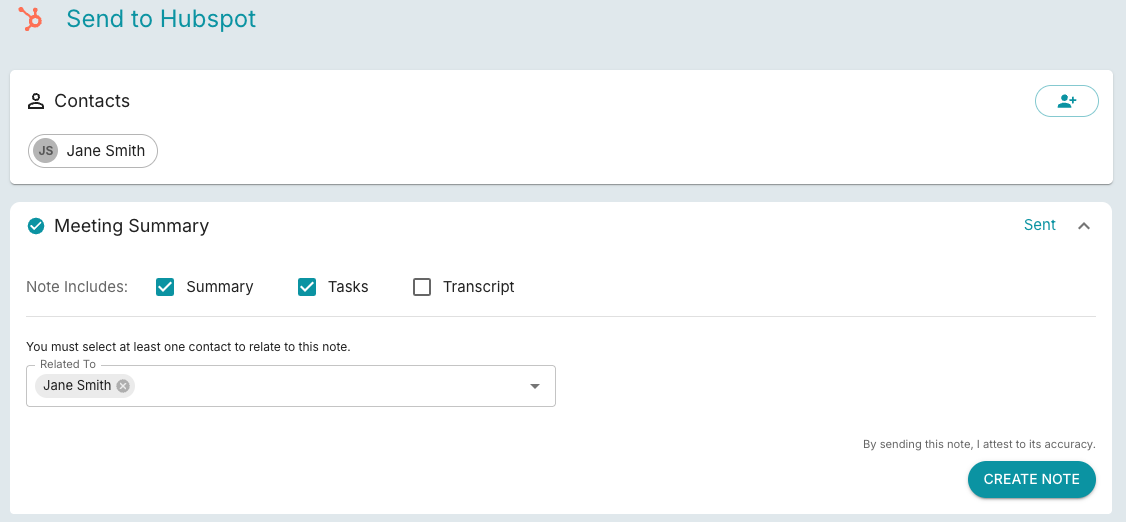
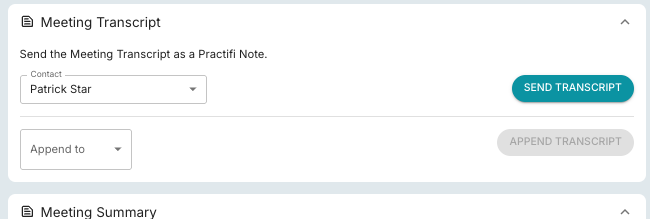
Export your meeting summary, tasks, and transcript to HubSpot notes.

Salesforce search and auto import

· One min read
Patrick McPherson
Software Developer

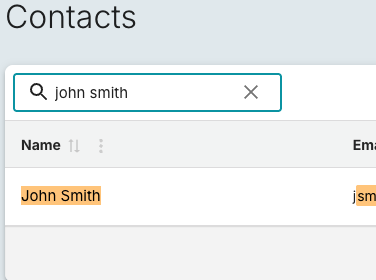
When searching through you FinMate contacts, we will also look for any Salesforce account, contact, or lead. If you decide to add that Salesforce contact to your meeting or view that contact's details we will automatically import that contact for you.

FinMate will always check Salesforce to make sure we are synced and your client details are up to date with the latest changes.

Phone Line Integration

· One min read
Patrick McPherson
Software Developer

We are now have phone line integration to easily have you call us, or us call you and record your phone meetings.

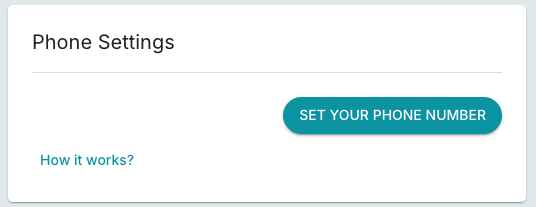
Simply set your phone number either through the Call button on the dashboard page, or Settings > Recorder > Phone Settings

Once your phone number is set:

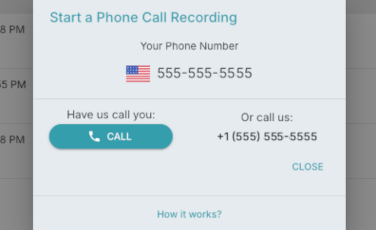
  1. You can start call you by opening the Start a Phone Call Recording dialog by clicking the Call button on the dashboard.
  2. From here you can either have us call you by clicking the Call button or call us at the number provided under Or call us.
  3. To add your client to the call find your Add or Add Call button and dial your client's number.
  4. Find the merge button to create a conference call with your client, our FinMate recorder, and you.

You can change or delete your phone number in Phone Settings - Settings > Recorder > Phone Settings

Share past meetings

· One min read
Patrick McPherson
Software Developer

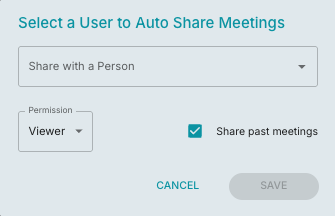
You can now share all your past meetings when you are choosing to auto share with another user. See the checkbox in the image below.

Find the auto share feature in your recorder settings