Troubleshooting
If approval is required, and your IT admin has approved, yet you still get the "Approval required" prompt,
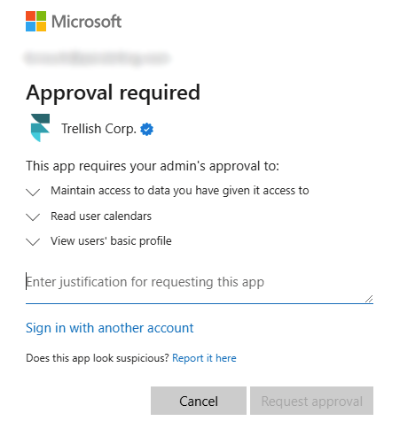
below are options that have worked for our users:
Manually add user to Enterprise App
- Your IT administrator signs in here https://entra.microsoft.com/
- Left side menu, select "Enterprise Applications"
- Sub Left side menu, Select All applications. and select FinMate AI.
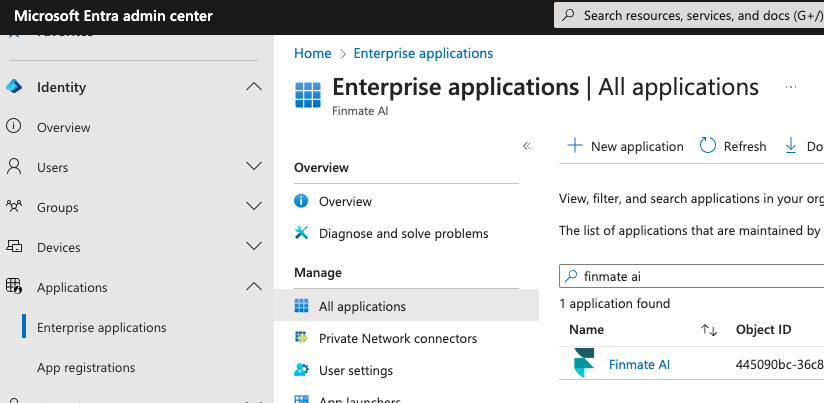
- Select "Users and Groups".
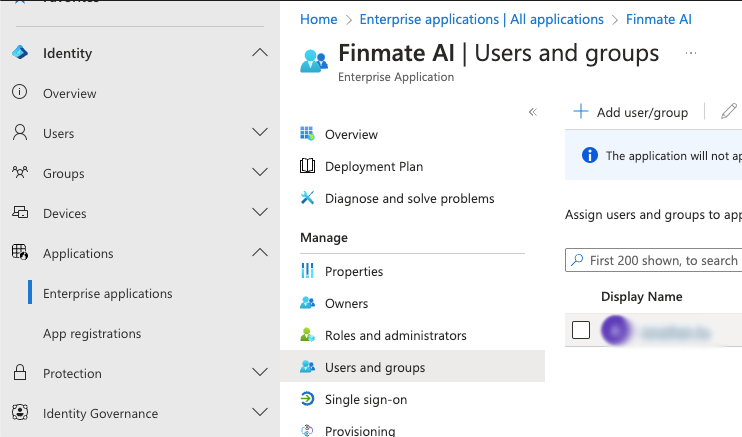
- Find the user you want to approve, and configure "Role Assigned" accordingly.
Allow user consent for apps
-
Go to Azure Active Directory > Enterprise Applications > Consent and Permissions.
-
In User consent settings, select one of the following:
-
Select
Allow user consent for apps -
Select
Allow user consent for verified publishers.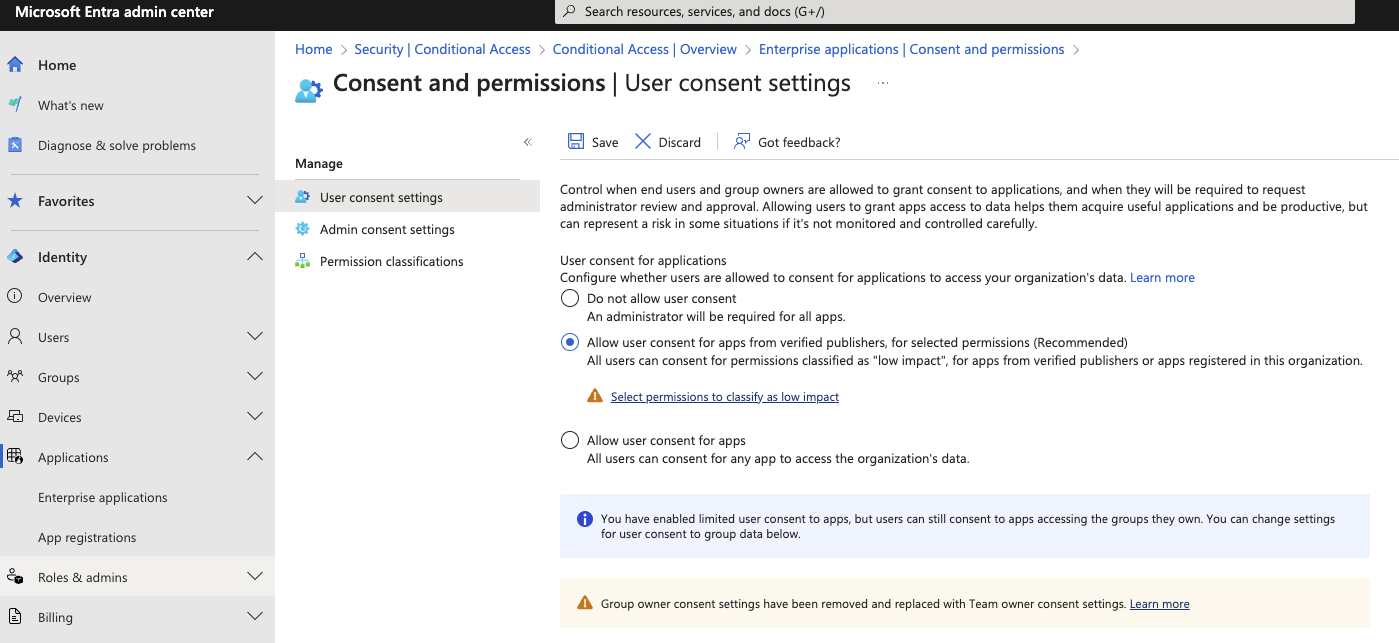
-
-
if using
Allow user consent for apps from verified publishers, go to Consent and permissions page.
Make sure the following permissions exists or you need to add:
- Microsoft Graph - Calendars.Read
- Microsoft Graph - Calendars.Read.Shared
- Microsoft Graph - Calendars.ReadBasic
- Microsoft Graph - Email
- Microsoft Graph - Profile
- Microsoft Graph - Openid

Links
-
see "NOTE: The global admin MUST check “Consent on behalf of your organization”, and click Accept. If it is not checked, consent will be granted only for the global admin account, the issue will persist for other users." https://medium.com/@namsoochoi/solved-need-admin-approval-or-approval-required-aadsts90094-error-during-microsoft-sign-in-b3fde2ec4523
-
see "Check if tenant admin has disabled user consent for your organization. Navigate to Azure AD > Enterprise Application > Consent and permissions (under security) > User consent for applications and validate if user is allowed to consent." https://learn.microsoft.com/en-us/answers/questions/1320544/approval-required-screen-showing-even-though-admin
-
See "Enable admin approval" section https://support.nylas.com/hc/en-us/articles/4508306123421-Microsoft-Office-365-Admin-Approval