Connect FinMate to Claude or ChatGPT
Once FinMate is connected, Claude or ChatGPT can look up your FinMate meetings, calendar events and pre-meeting prep. That lets you run your own custom workflows, like "prep me for tomorrow's client meetings" or "take yesterday's meeting notes and tasks into the right CRM contact" (with your own Redtail, Wealthbox or Salesforce connector).
Beyond reading, it can only link a FinMate contact to its Redtail, Wealthbox or Salesforce record, create a contact, and mark a meeting as sent to your CRM. It can't edit or delete anything else.
Requires an active FinMate plan (paid, lite or trial).
By connecting FinMate to Claude or ChatGPT, you agree to share your meeting notes, transcripts and client personal data with your own Claude or ChatGPT account. It is then handled under that account's plan and data settings, not FinMate's. Check that this fits your firm's compliance policy before you connect.
Connector URL
Both assistants use the same URL:
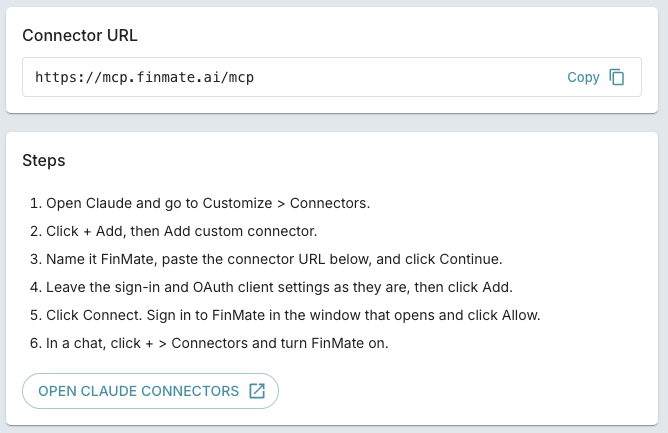
https://mcp.finmate.ai/mcp
You can also copy it from the setup page in FinMate: Integrations > Claude or ChatGPT.
Connect to Claude
This connector is not yet verified by Anthropic, so Claude may show a notice that it is a custom connector. That is expected. If your Claude plan is Team or Enterprise and you do not see Add custom connector, ask your Claude admin to add it once. After that, you can click Connect yourself.
- Open Claude and go to Customize > Connectors.
- Click + Add, then Add custom connector.
- Name it FinMate, paste the connector URL above, and click Continue.
- Leave the sign-in and OAuth client settings as they are, then click Add.
- Click Connect. Sign in to FinMate in the window that opens and click Allow.
- In a chat, click + > Connectors and turn FinMate on.
Connect to ChatGPT
ChatGPT support is in beta and has not been fully tested. Which ChatGPT plans can add custom MCP servers depends on your plan and workspace settings.
- Open ChatGPT and go to chatgpt.com/plugins.
- Click +, then Add custom MCP server.
- Enter the name FinMate and a short description.
- Paste the connector URL above, then set up authentication when asked.
- Accept the warning and click Create as a plugin.
- In a new chat, type @ and pick FinMate. Sign in to FinMate and click Allow when prompted.
Try it
Once FinMate is on in a chat, ask something like:
- "What meetings did I have yesterday?"
- "Prep me for my next client meeting."
- "Summarize my last meeting with the Smith family and list the tasks."
Next step
Want your meeting notes and tasks to land in Redtail on their own? See Automate Redtail updates.