Topic Tracker
Topic Tracker builds a live outline of your meeting. As your client brings up financial topics, it files what they said under each one, so you don't have to scribble notes or scroll back through the transcript.
Topic Tracker is in beta. Standard users can use it for free for a limited time, and future usage credits may apply.
Download the Desktop App: Mac (Apple Silicon) | Windows
Where to find it
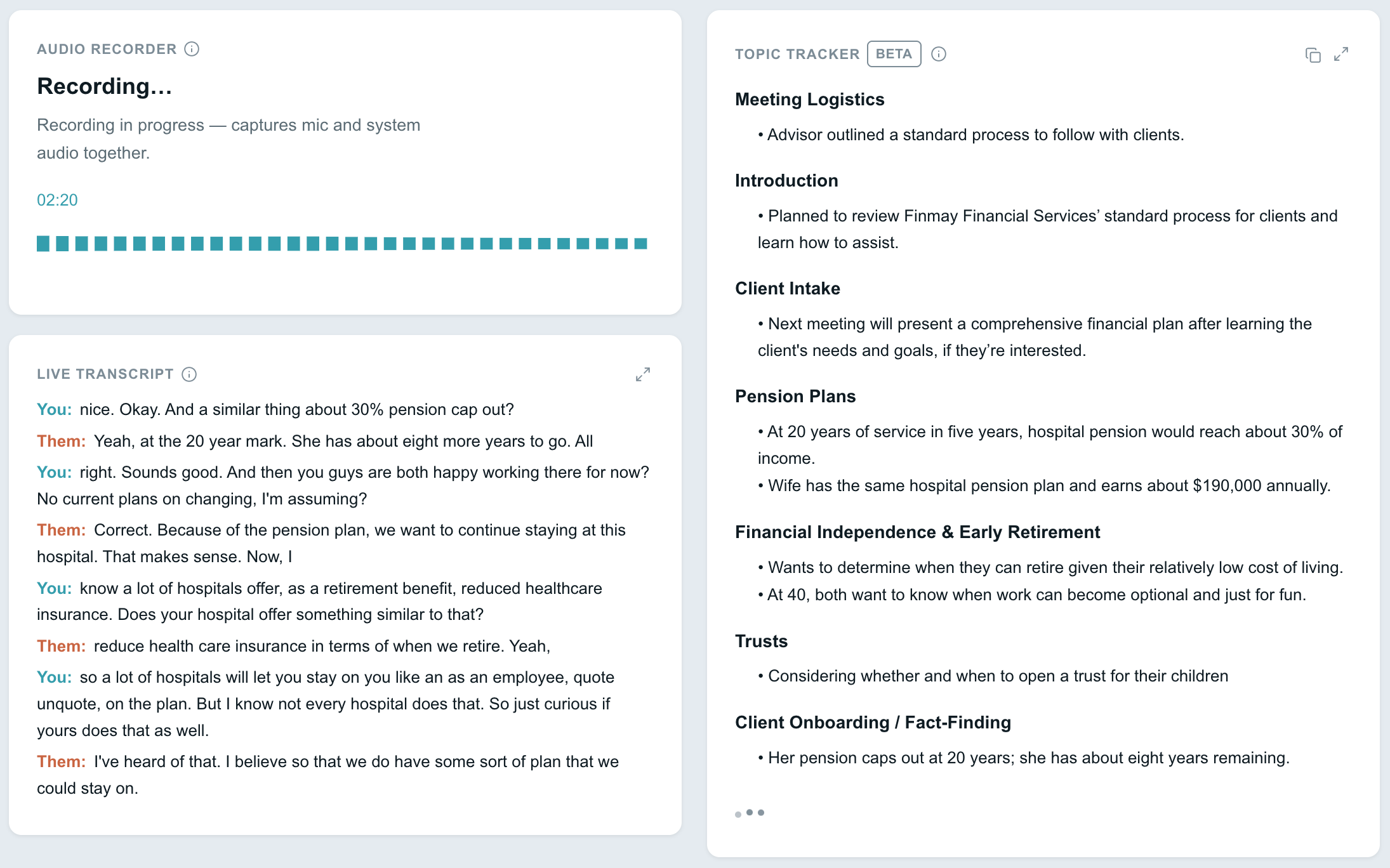
When Topic Tracker is turned on, it appears on the recording screen of the Desktop App, next to the Live Transcript. You will see a Topic Tracker card with a Beta badge.
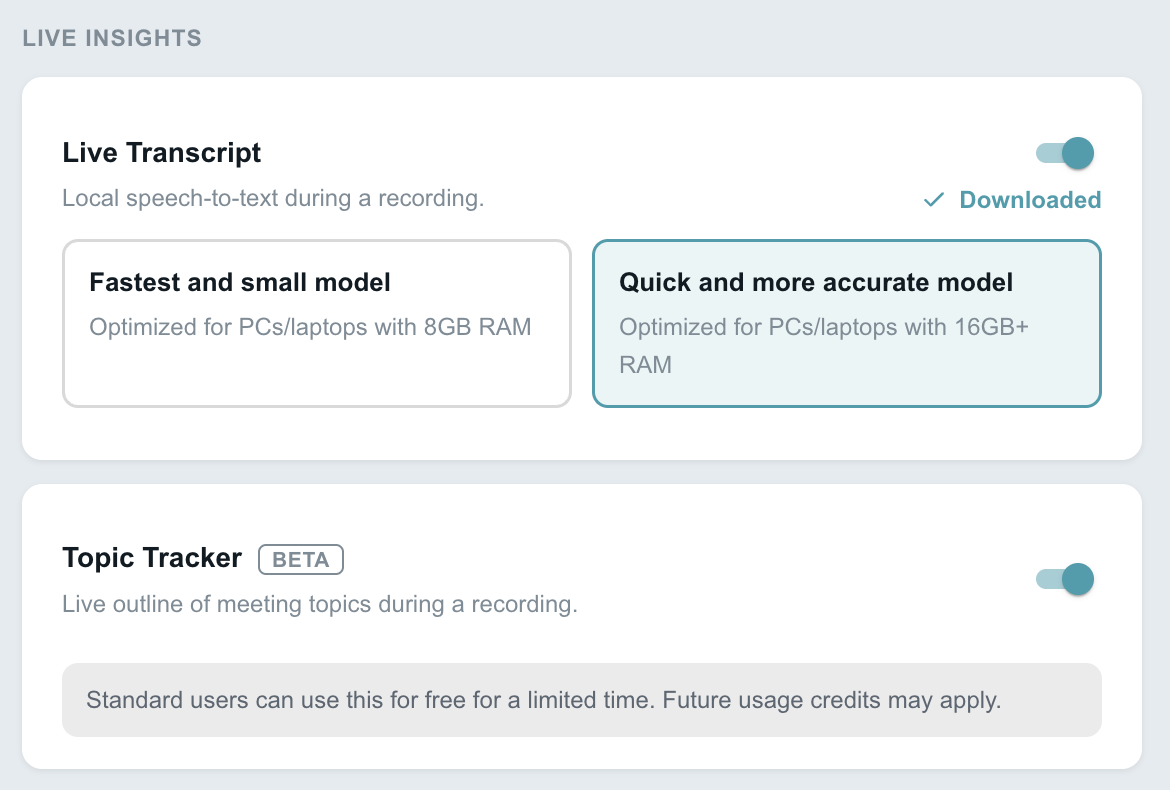
If you don't see it, turn it on in Settings:
- Open Settings in the Desktop App.
- Find the Live Insights section.
- Switch on Live Transcript (must be on for Topic Tracker to work).
- Switch on Topic Tracker.
Using it in a meeting
- Start a recording as usual.
- As the conversation goes, topics appear in the Topic Tracker card. Under each topic you will see the details your client shared.
- Use the icons on the card:
- Copy (top right) copies the whole outline so you can paste it into your notes.
- Expand (top right) opens a larger view that is easier to read.
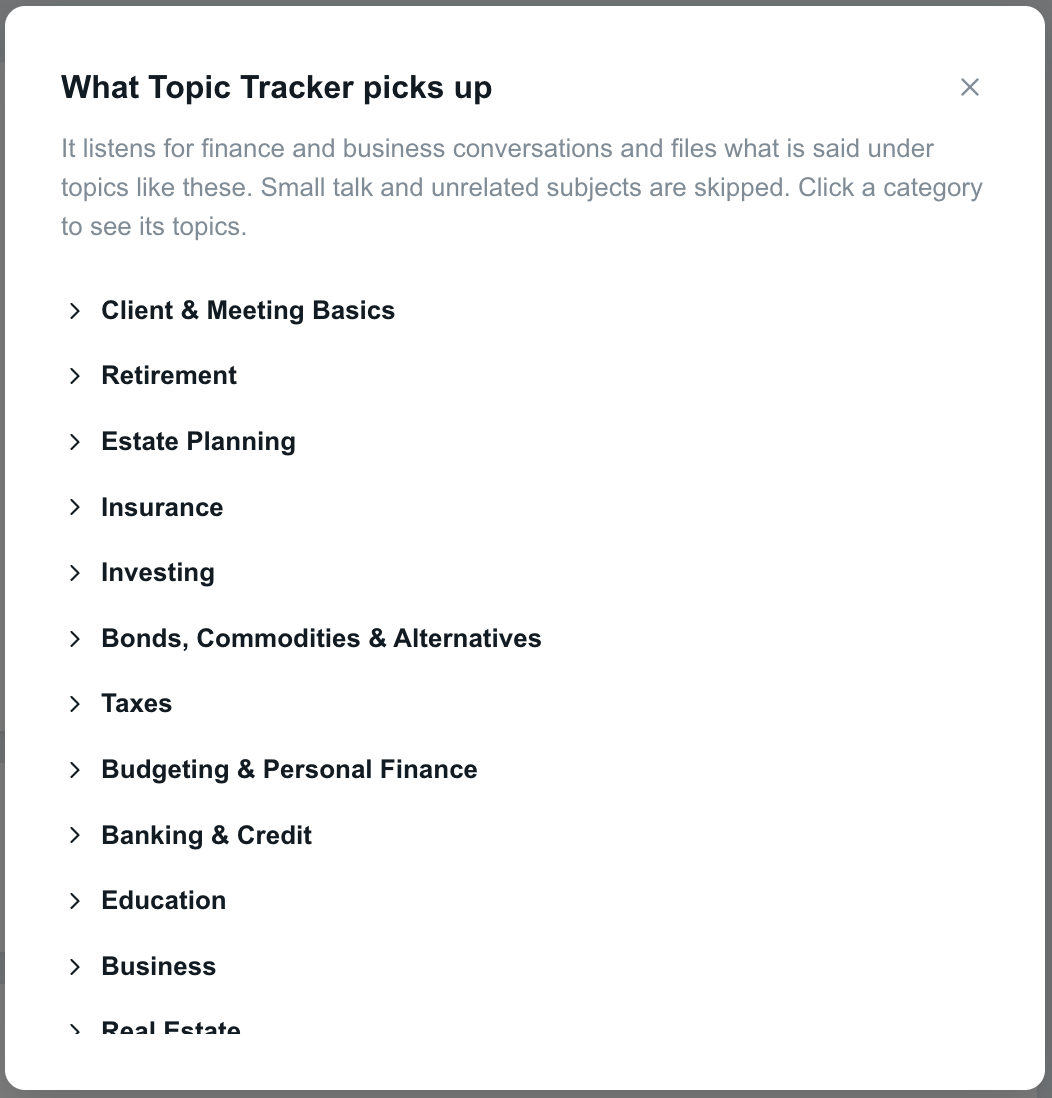
- Info (next to the title) shows the topics Topic Tracker listens for.
What it picks up
Topic Tracker covers 200+ topics, grouped into categories such as Retirement, Estate Planning, Insurance, Investing and Taxes. It listens for finance and business conversations and skips small talk and unrelated subjects.
Click the info icon on the card to browse the full list. Click a category to see its topics.
After the meeting
After your meeting, find the outline under Review your recordings on the home screen. Click the Topic Tracker icon next to your recording.
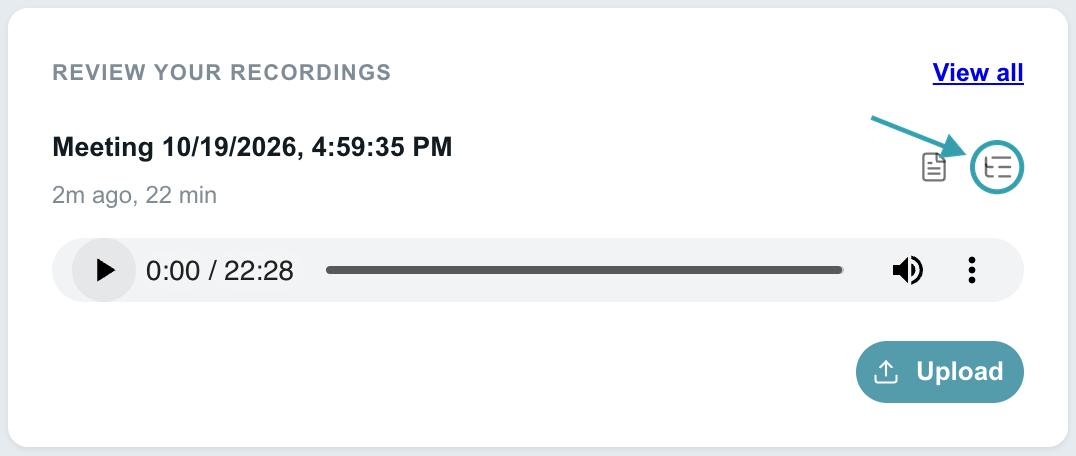
You will only see the icon if Live Transcript and Topic Tracker are turned on in Settings.